
Configuration
Set up your company details, contact information, branding and unique Reservie address in the Configuration settings.
Overview
The Configuration tab is where you set up the core details of your business. This information appears on invoices, email notifications and your customer-facing booking portal.
To access it, navigate to Settings from the sidebar menu. The Configuration tab is selected by default.
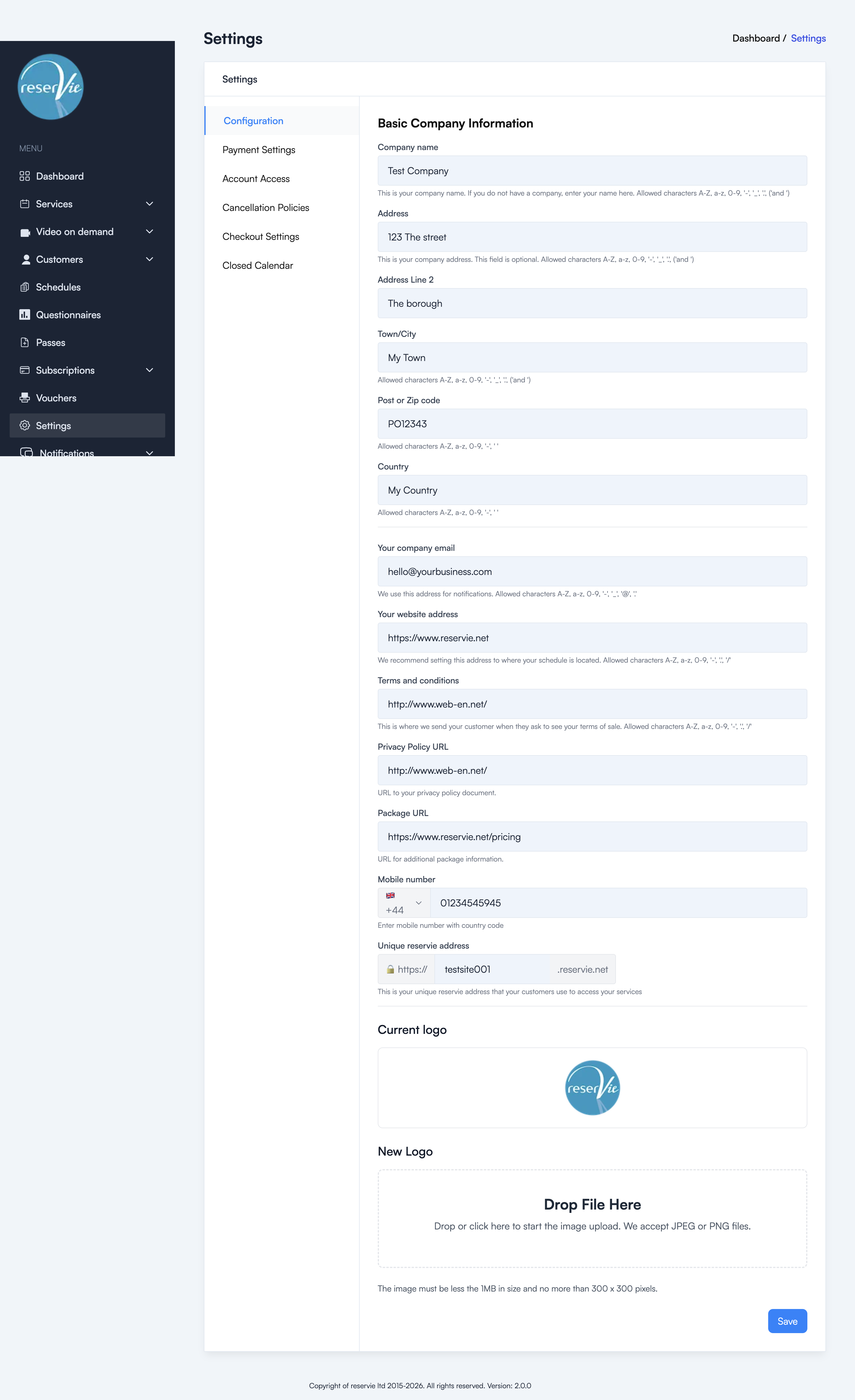
Company information
| Field | Description |
|---|---|
| Company name | Your business or trading name. If you are a sole trader, enter your own name. |
| Address / Address Line 2 | Your business address (optional). |
| Town/City | Your town or city. |
| Post or Zip code | Your postal or zip code. |
| Country | Your country of operation. |
Contact details
| Field | Description |
|---|---|
| Company email | The email address used for system notifications. |
| Website address | We recommend setting this to the page where your schedule or booking portal is embedded. |
| Terms and conditions | The URL your customers are directed to when they ask to see your terms of sale. |
| Privacy Policy URL | A link to your privacy policy document. |
| Package URL | A link to additional package or pricing information. |
| Mobile number | Your contact phone number with country code. |
Unique Reservie address
Every Reservie account has a unique address in the format https://yourname.reservie.net. This is the URL your customers use to access your booking portal directly. It is set during registration and cannot be changed without contacting support.
Company logo
You can upload your company logo, which appears on your booking portal and email communications. The logo must be:
- JPEG or PNG format
- Less than 1 MB in size
- No more than 300 x 300 pixels
To upload a new logo, drag and drop a file into the upload area or click Choose File.
Saving changes
After making changes, click the Save button at the bottom of the page. Changes take effect immediately.