De-authorising reservie access of your Zoom account
Updated Jan 15, 2024 1 min read
Occasionally you may wish to revoke or remove reservie access of your Zoom account. This is quick and simple and can be done either via Zoom's market place or via your reservie account.
Introduction
Occasionally you may wish to revoke or remove reservie access of your Zoom account. This is quick and simple and can be done either via Zoom’s market place or via your reservie account.
De-authorising via Zoom market place
The easiest way to de-authorise reservie access to Zoom is via the market place. This can be done as follows:
- Log in to your Zoom Account and navigate to the Zoom App Marketplace.
- Click Manage > Installed Apps or search for the reservie app.
- Click the reservie app.
- Click Uninstall.

Revoking access within reservie
To revoke access within reservie, complete the following steps:
- Log in to https://go.reservie.net
- Click Integrations
- Find the Zoom integration management panel and click manage
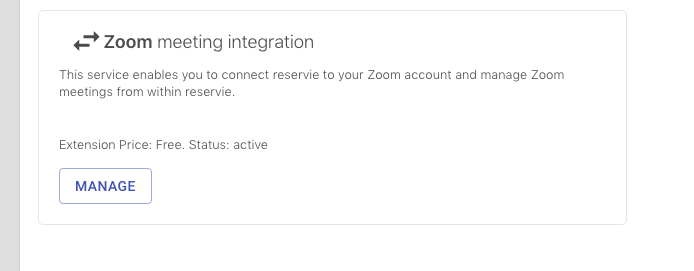
Upon clicking manage you will be presented with the management pop-up and complete the following steps:
- Find the Zoom account that you would like to revoke access for
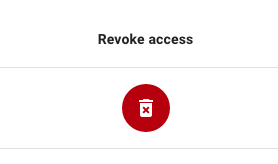
- Click the revoke button