
Closed Calendar
Mark specific dates as closed to prevent customers from booking on holidays, maintenance days or other closures.
Overview
The Closed Calendar lets you block out specific dates when your business is not operating. On closed dates, customers will not be able to make bookings through your portal.
To access it, navigate to Settings from the sidebar menu, then click the Closed Calendar tab.
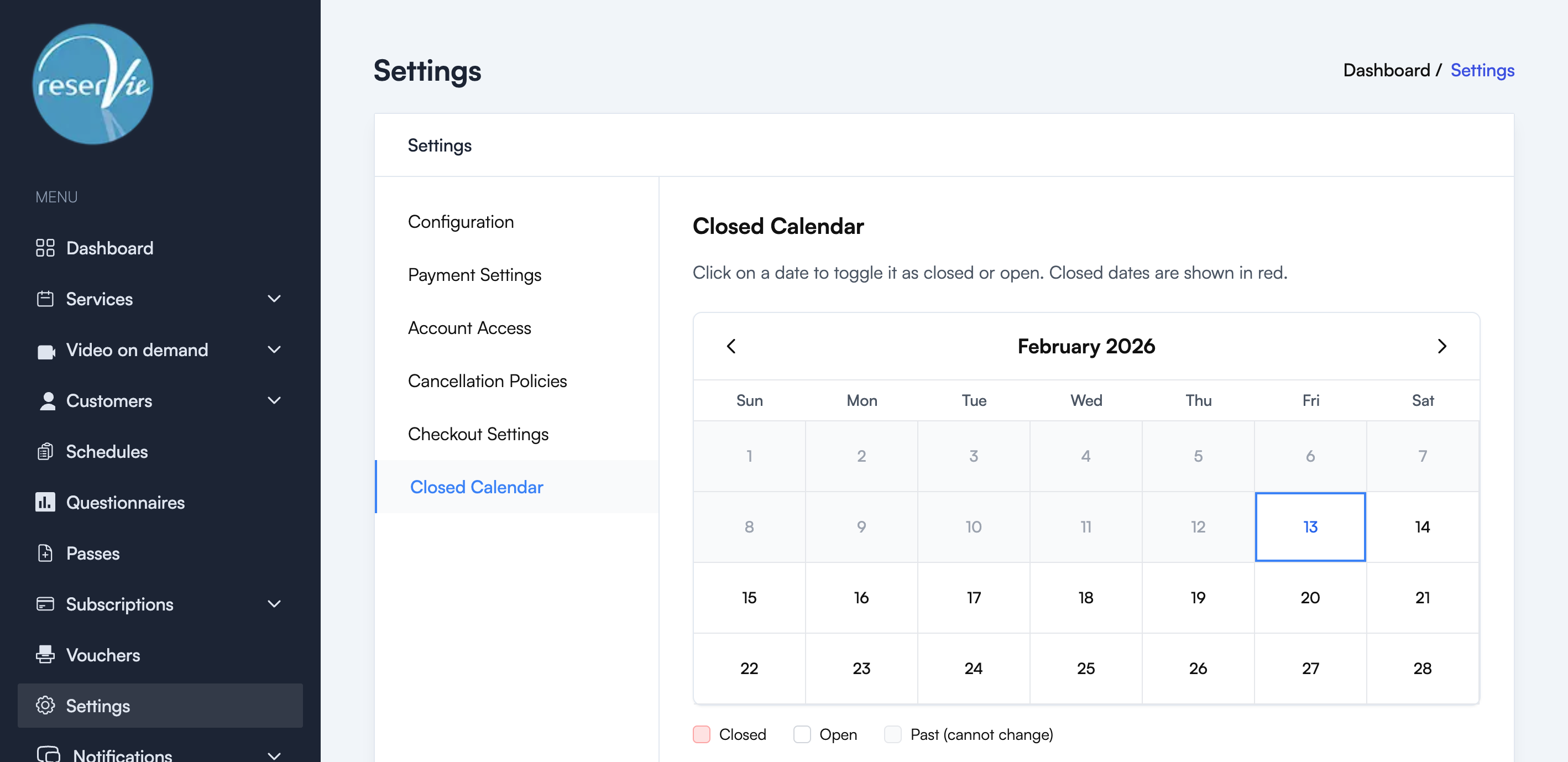
Using the calendar
The calendar displays the current month. Use the left and right arrows to navigate between months.
Marking a date as closed
Click on any future date to toggle it between open and closed. Closed dates are highlighted in red.
Calendar legend
| Colour | Meaning |
|---|---|
| Red | Closed — no bookings allowed |
| White | Open — bookings allowed as normal |
| Grey | Past dates — cannot be changed |
Note: You can only modify future dates. Past dates are locked and shown in grey.
Closed Dates List
Below the calendar, a list of all configured closed dates is displayed. You can also add closed dates directly using the Add Closed Date button.
Common uses
- Bank holidays: Close your calendar on public holidays
- Annual leave: Block out holiday periods in advance
- Maintenance days: Prevent bookings when your venue is unavailable
- Seasonal closures: Close for extended periods such as Christmas week
Saving changes
Changes are saved automatically when you click on a date to toggle it. There is no separate save button for the calendar view.