
Overview
The customer transfer tool allows you to move a customer’s existing booking from one event to another. This is useful when a customer needs to reschedule, when an event is cancelled and attendees need to be moved, or when a booking was made for the wrong date.
Navigate to Customers > Transfer customer from the sidebar menu.
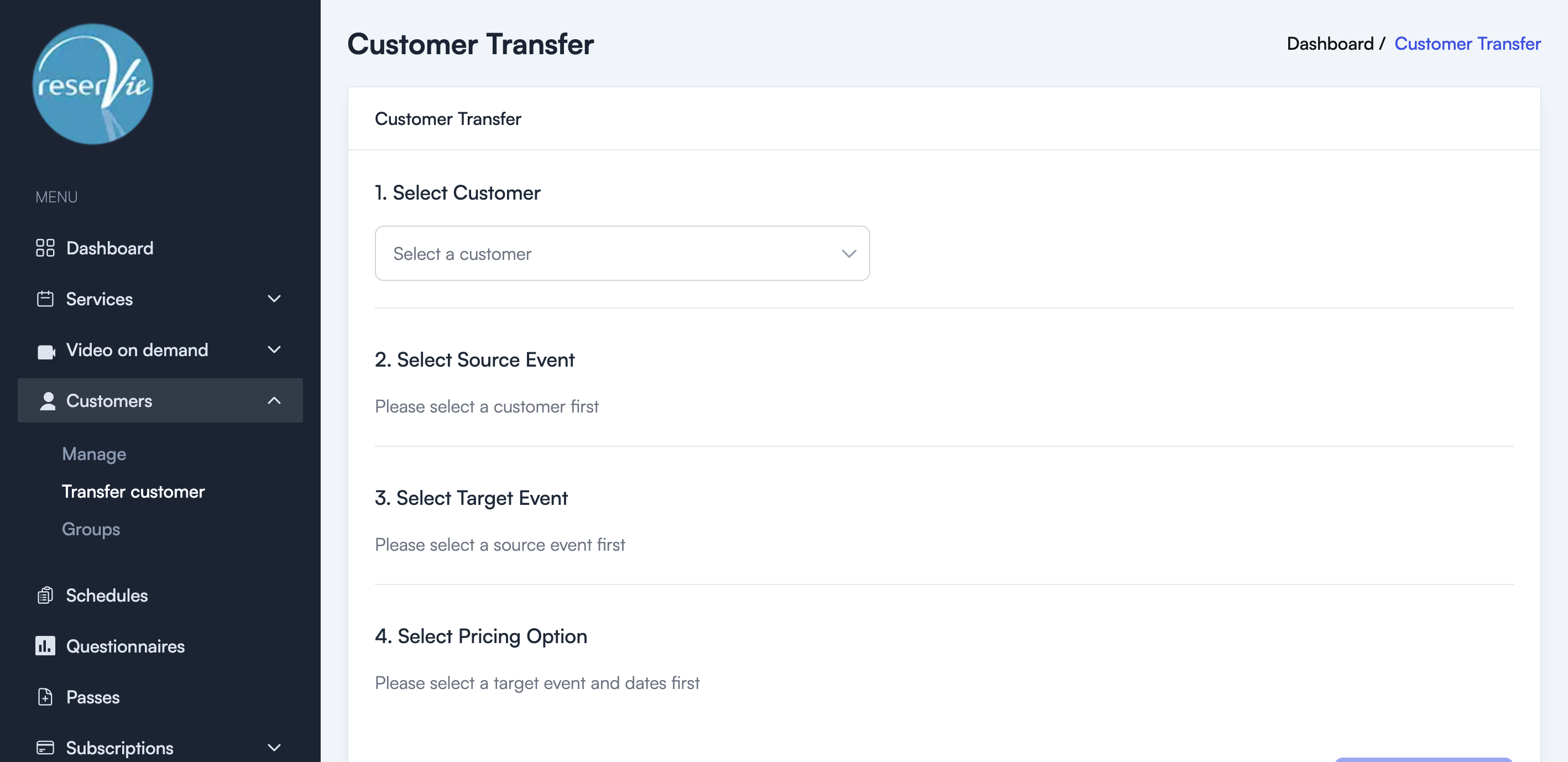
Transfer process
The transfer follows a guided four-step process:
1. Select Customer
Choose the customer whose booking you want to transfer. Use the dropdown to search and select from your customer list.
2. Select Source Event
Once a customer is selected, their existing bookings are displayed. Choose the event booking you want to transfer from.
3. Select Target Event
Select the destination event — the event you want to move the customer to. You can choose a specific date if the event has multiple occurrences.
4. Select Pricing Option
Choose how the transfer should be priced. Options may include:
- Keep original price — The customer retains their original payment.
- Apply new pricing — The customer is charged the price of the new event.
Process Transfer
Once all four steps are complete, click Process Transfer to execute the move. The customer’s booking will be updated to reflect the new event.
Important: Transfers move the booking record — the customer does not need to re-register or make a new payment (unless a pricing change is selected).
When to use transfers
| Scenario | Action |
|---|---|
| Customer can’t attend their booked date | Transfer to a different date of the same event |
| Event cancelled by you | Transfer affected customers to an alternative event |
| Booking made in error | Transfer to the correct event |
Tip: If you need to cancel a booking entirely rather than transfer it, use the booking management actions from the customer’s detail page instead.