
What Settings is for
The Settings hub (sidebar → Settings) is where you configure everything that affects the whole account — not individual events or customers, but the studio itself: who you are, how you charge, what your customers see at checkout, who can sign in, and how you integrate with our API.
The page is a tabbed sidebar inside the page. Each tab is a different settings area:
| Tab | What you change there |
|---|---|
| My Plan | Your reservie subscription tier and add-ons |
| Video | Settings specific to Video on Demand |
| Configuration | Company info, address, contact details, logo |
| Payment Settings | Currency the account uses |
| Account Access | Team members and their permissions |
| Cancellation Policies | Default refund/cancellation rules |
| Checkout Settings | Optional checkout customisations (questionnaires, terms, fields) |
| Closed Calendar | Holidays and dates when nothing is bookable |
| API Clients | Programmatic API access tokens |
| Security | Password, 2-factor auth, sign-in history |
| Apple Pay | Enable Apple Pay at checkout and register custom domains |
Read on for what each tab does.
My Plan
Your reservie subscription. Three plan tiers are visible — Starter, Growth, Pro — alongside any Add-ons you’ve activated (e.g. Reservie Mobile Connect, Video on Demand).
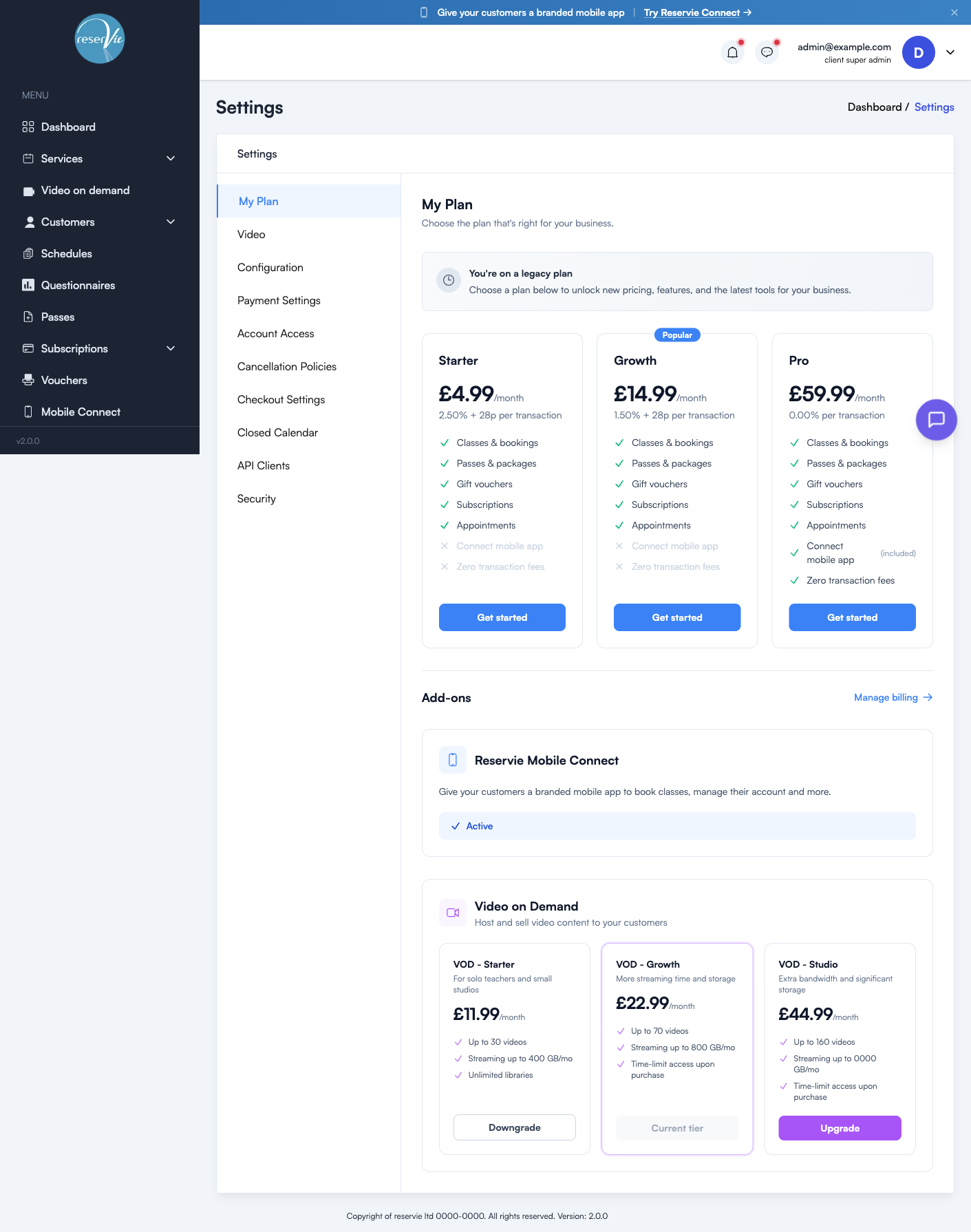
Plan cards
Each plan shows:
- Monthly price
- Transaction percentage (charged on top of the monthly fee)
- Feature list — ticks for what’s included, crosses for what isn’t
- Get started button to switch to that plan
The plan you’re on is highlighted. If your account predates current pricing, you’ll see a “You’re on a legacy plan” notice — you can stay on it or move to a current plan.
Add-ons
Below the main plan cards:
- Reservie Mobile Connect — branded customer mobile app. See Mobile Connect Overview.
- Video on Demand — three VOD tiers (Starter / Growth / Studio) varying by storage and bandwidth allowance. See Video on Demand Overview.
Use Manage billing in this area to open the Stripe customer portal where invoices, payment methods, and billing history live.
Video
Account-level settings for Video on Demand — for example, default upload quality preference and library defaults. Most VOD admin happens inside individual libraries; this tab is for the cross-cutting settings.
Configuration
Your company information — what customers see in confirmation emails, invoices, and receipts.
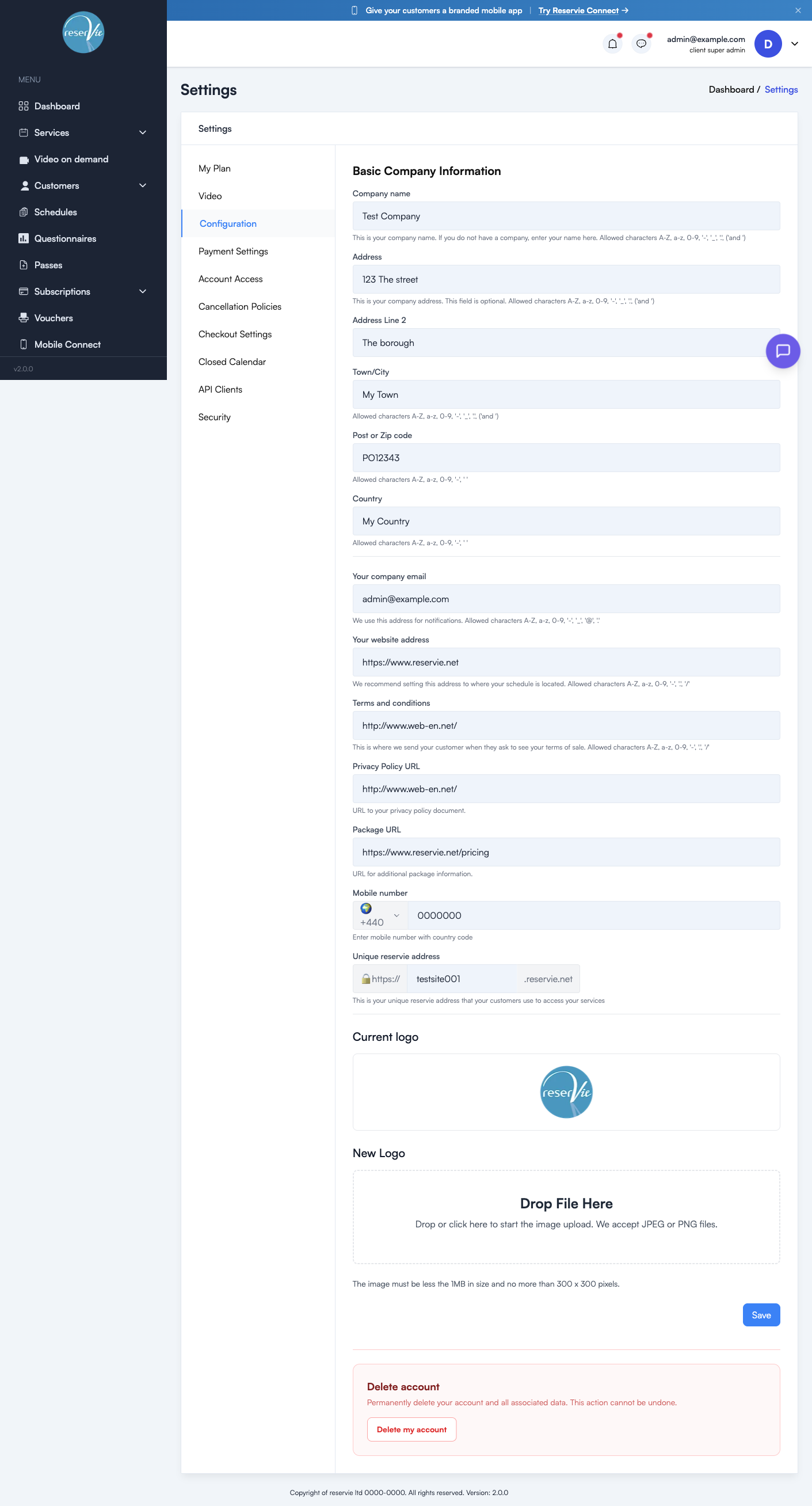
Basic Company Information
| Field | Notes |
|---|---|
| Company name (required) | What appears on emails and the customer portal. If you trade as a sole trader without a company, use your own name. |
| Address Line 1, 2, Town/City, Post/Zip code, Country | The address printed on customer receipts and invoices |
| Your company email | The address customer notifications are sent from (and where replies land) |
| Your website address | The URL where your schedule is hosted — used in emails to link customers back to you |
| Terms and conditions URL | Linked at customer checkout for your standard terms |
| Privacy Policy URL | Linked from sign-up forms and footers |
| Package URL | Optional URL for additional package info — used by some embedded widgets |
| Mobile number | Country code + number, for SMS-style notifications and support contact |
| Unique reservie address | Your subdomain on reservie.net — your customer-facing booking URL |
Logo
The Current logo is shown at the bottom — uploaded via the New Logo drop zone. JPG/PNG, max 1 MB, max 300×300 px. The logo appears in emails, the customer portal header, and invoice templates.
Delete account
A red Delete my account button at the very bottom. This is permanent and unrecoverable — if you need to pause rather than delete, talk to support first.
Payment Settings
A short tab with one critical setting: Currency.
| Currency | Code |
|---|---|
| British Pound | GBP |
| Euro | EUR |
| US Dollar | USD |
| Australian Dollar | AUD |
| New Zealand Dollar | NZD |
| Swiss Franc | CHF |
| Swedish Krona | SEK |
| Norwegian Krone | NOK |
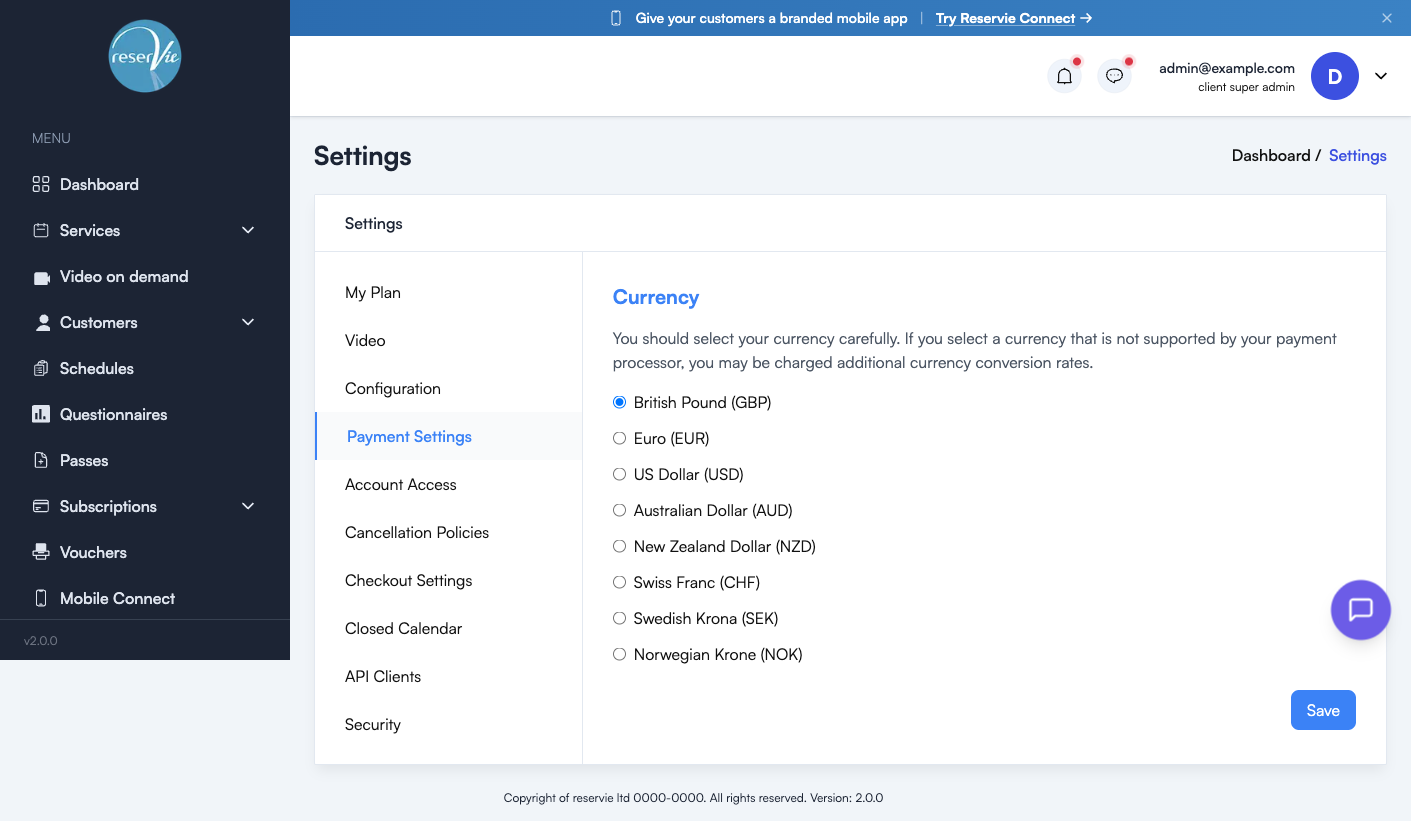
Important: pick the currency that matches your Stripe payout currency. If they don’t match, Stripe charges currency-conversion fees on every transaction.
Stripe Connect itself (the link between your Stripe account and reservie) is set up under Integrations rather than here.
Account Access
Add team members, set their permissions, and remove old logins. Roles available include:
- Super admin — full access (you, by default)
- Admin — most management actions but can’t change billing or delete the account
- Reception — front-desk operations: bookings, customer management, registers
- Facilitator — sees only the events/registers they’re assigned to teach
Each invited user gets an email to set their password and confirm the address. See Account Access for the detailed walkthrough.
Cancellation Policies
Account-wide defaults for how cancellations and refunds are handled — for example:
- “Customers can cancel up to 24h before; full refund.”
- “Customers can cancel up to 6h before; refund as credit only.”
- “No cancellations once booked.”
The policy applies to bookings unless overridden at the event level. See Cancellation Policies.
Checkout Settings
Optional ways to customise what happens at checkout:
- Which questionnaires are presented
- Whether terms acceptance is required
- Custom fields collected (e.g. “How did you hear about us?“)
- Per-product upsells
See Checkout Settings.
Closed Calendar
A list of dates when nothing is bookable — bank holidays, studio closures, your own holidays. Closed dates are honoured automatically by both the public booking flow and any auto-generated event dates.
See Closed Calendar.
API Clients
If you’re building an integration on top of reservie, this is where you generate machine-to-machine (M2M) API credentials. Each client has its own ID and secret, and can be revoked independently. See Getting Started with the API.
Security
Account-security settings for your own login:
- Change password
- Enable / manage two-factor authentication (TOTP)
- Sign-in history (recent sessions and IPs)
- Active sessions (sign out other devices)
If you’re a super admin, this is the right place to look first if something feels off — sign-in history will show you whether anyone’s accessed your account from an unfamiliar location.
Apple Pay
Enable the Apple Pay button at checkout, and register the domains where your booking widget lives. Your Reservie-hosted booking page is registered automatically — only custom-domain widget embeds (WordPress, self-hosted sites) need anything done here. Apple Pay is not supported on Wix or Squarespace embeds. Google Pay is enabled automatically alongside Apple Pay.
See Apple Pay for the full setup walkthrough.
Common scenarios
”I’m changing my company’s trading address.”
Configuration → Address Line 1 / Town / Postal code / Country, then Save. The change applies to all future emails and invoices; previously sent emails are unchanged.
”I want to add my partner as a co-admin.”
Account Access → Invite User. Pick the Admin role unless you specifically want them to manage billing (in which case Super admin).
”Stripe is charging me conversion fees.”
Payment Settings → Currency — make sure it matches your Stripe payout currency.
”We’ve decided to close the studio for two weeks in August.”
Closed Calendar — add the date range. No new bookings will be taken across those dates, and any auto-recurring events will skip them.
”I’m building an integration with our membership system.”
API Clients → Add Client. Generate the client ID and secret, store them in your integration’s secrets manager, never in source control.
Where to go next
- Account Access — invite team members with the right roles
- Payment Settings — currency and Stripe payouts
- Cancellation Policies — set your refund rules
- Checkout Settings — customise the customer checkout flow
- Closed Calendar — block out dates
- Getting Started with the API — programmatic access
- Apple Pay — enable Apple Pay and register widget-embed domains