
Overview
A subscription plan defines the membership offering that customers can subscribe to. Each plan is associated with a pass, so when a subscription renews, the customer automatically receives a new pass.
Subscription plans are managed from Subscriptions > Plans in the sidebar menu.
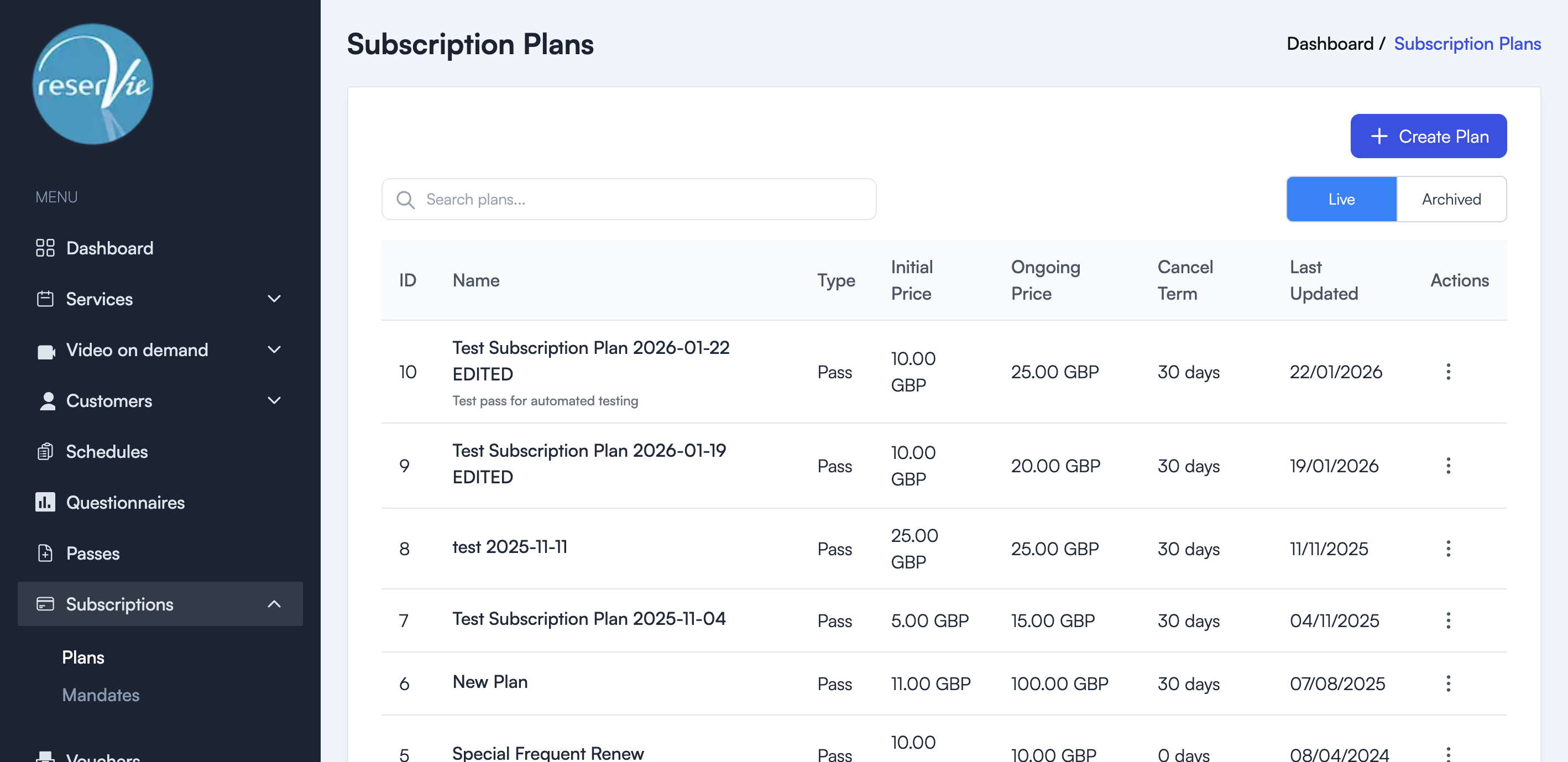
Viewing existing plans
The Plans page displays all your subscription plans in a table with Live and Archived tabs.
| Column | Description |
|---|---|
| ID | The unique plan identifier |
| Name | The plan name (shown to customers) |
| Type | The associated entity type (Pass) |
| Initial Price | The price charged on first sign-up |
| Ongoing Price | The recurring price charged on each renewal |
| Cancel Term | The minimum number of days before a customer can cancel |
| Last Updated | When the plan was last modified |
| Actions | Edit, pause, or manage the plan |
Creating a subscription plan
- Navigate to Subscriptions > Plans from the sidebar menu.
- Click the + Create Plan button.
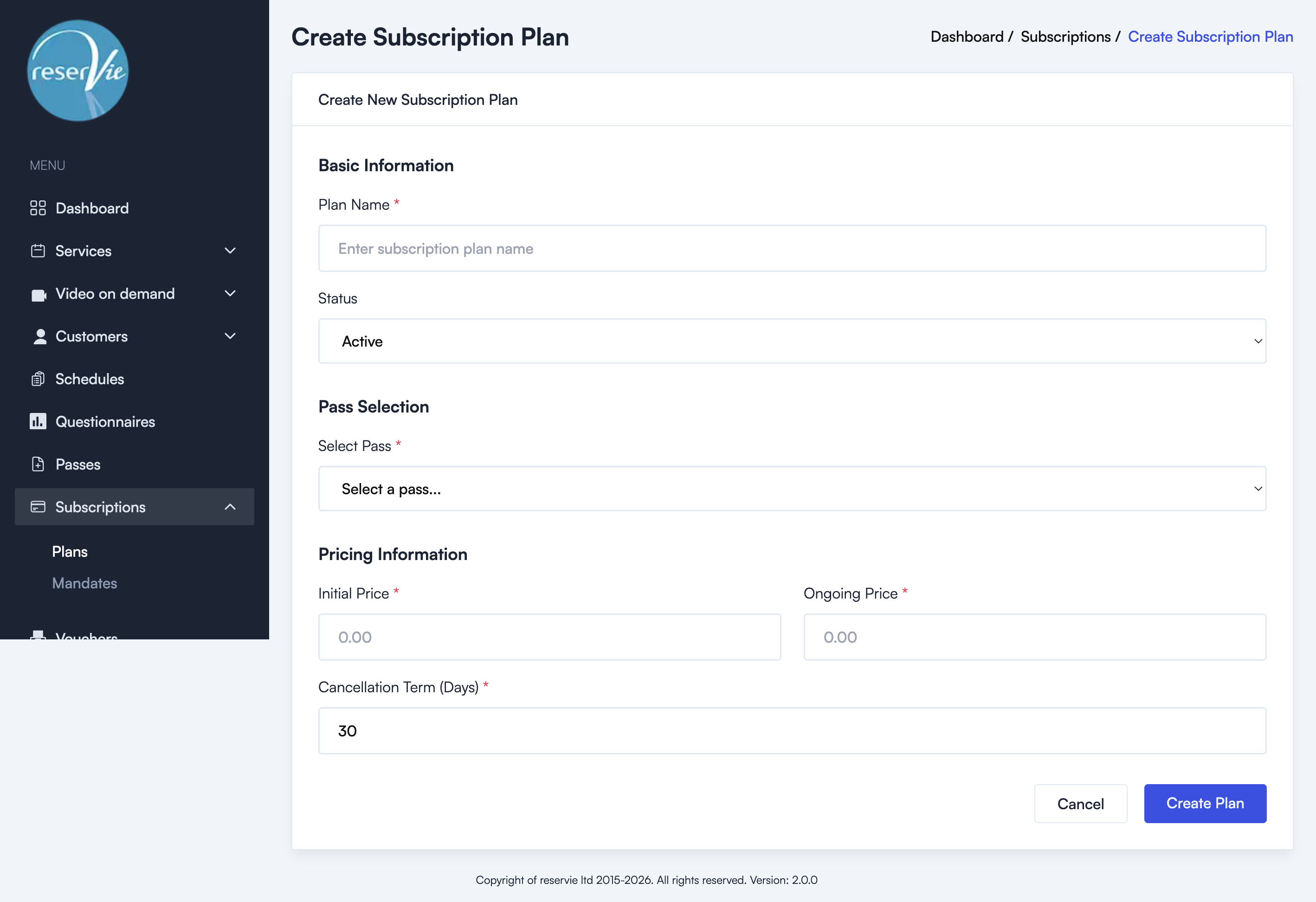
- Fill in the form fields:
Basic Information
- Plan Name — The name of the plan displayed to customers (e.g. “Monthly Unlimited Yoga”, “Weekly Class Pass”).
- Status — Set to Active to make the plan immediately available, or Paused to create it without enabling sign-ups.
Pass Selection
- Select Pass — Choose the pass that will be automatically assigned to customers on each renewal. You must have already created the pass in the Passes section.
Pricing Information
- Initial Price — The amount charged when a customer first signs up. This can be different from the ongoing price (e.g. a reduced introductory rate).
- Ongoing Price — The recurring price charged on each subsequent renewal. Must be at least £1, $1, or 1 Euro.
- Cancellation Term (Days) — The minimum number of days the subscription must be active before the customer can cancel. Set to
0for no minimum term.
- Click Create Plan to save.
Managing plans
From the Actions menu on each plan, you can:
- Pause — Stops new customers from subscribing but keeps existing mandates active.
- Resume — Re-enables a paused plan for new sign-ups.
- Archive — Removes the plan from the active list. Archived plans can be viewed under the Archived tab.
Important: Once a plan has been created, we recommend not making significant changes to it, as the plan forms the basis of the contract your customers sign. If you need to change terms significantly, create a new plan and ask customers to re-subscribe.
Publishing the plan
If you are using schedules, subscription plans are automatically available through the schedule checkout when the Subscriptions toggle is enabled in the schedule’s Display options. No additional publishing steps are needed.