
Overview
Once customers have subscribed to a plan by signing a mandate, you can manage their mandates and view associated invoices from the Mandates section.
Mandates are managed from Subscriptions > Mandates in the sidebar menu.
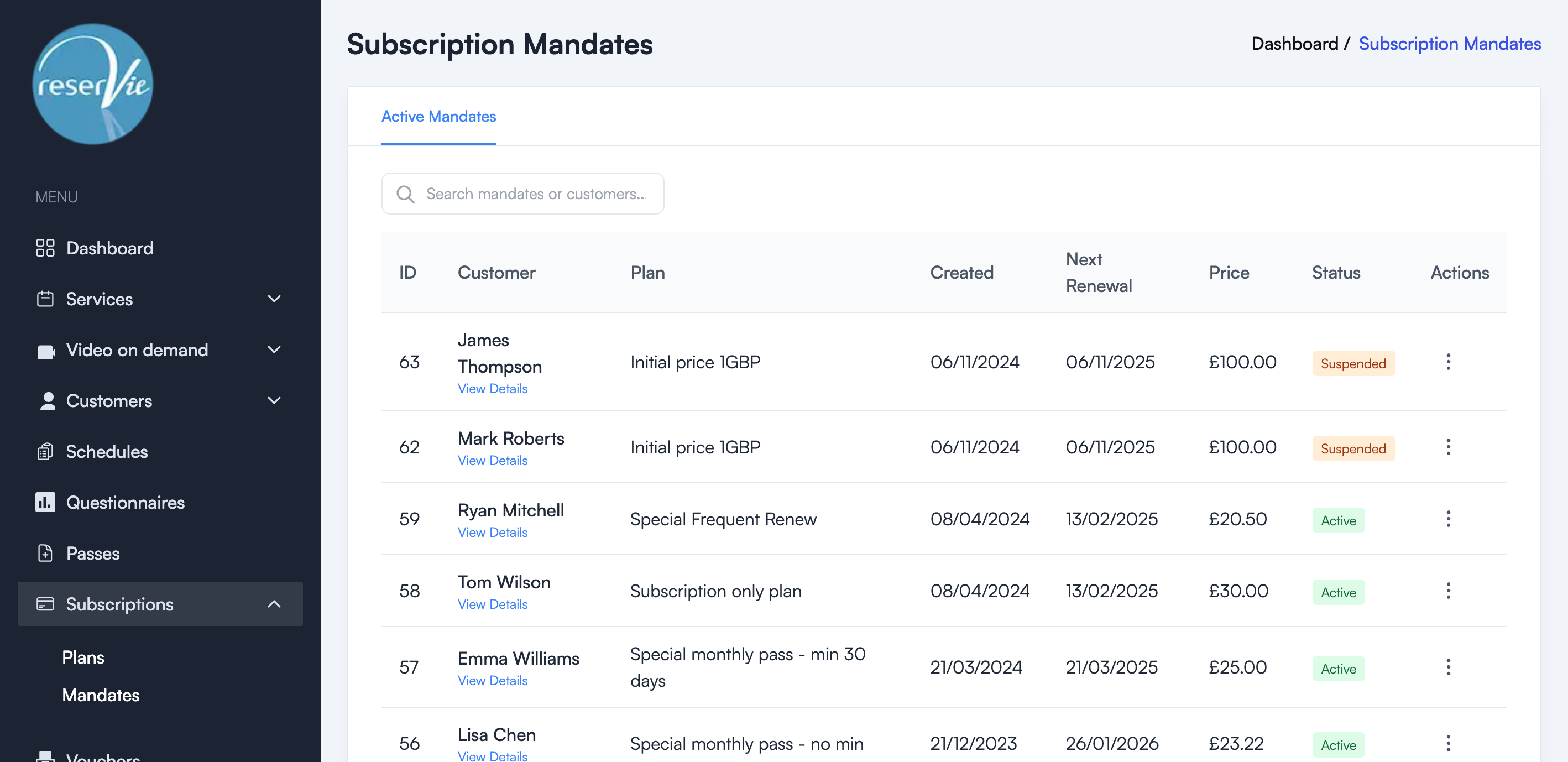
Viewing mandates
The Mandates page shows all active mandates with:
| Column | Description |
|---|---|
| ID | The unique mandate identifier |
| Customer | The customer who signed the mandate (click “View Details” for more) |
| Plan | The subscription plan name |
| Created | When the mandate was signed |
| Next Renewal | When the next payment is due |
| Price | The recurring charge amount |
| Status | Active, Paused, Suspended, or Cancelled |
| Actions | Manage the mandate |
Use the search bar to find mandates by customer name or mandate ID.
Mandate statuses
| Status | Description |
|---|---|
| Active | The mandate is running normally. Invoices will be generated and payments processed automatically. |
| Paused | Payments have been temporarily stopped. The mandate can be resumed. |
| Suspended | A payment has failed. The customer needs to resolve the payment issue. |
Managing a mandate
From the Actions menu on each mandate, you can:
View details
Click View Details on the customer name to see:
- Customer information
- Mandate overview (terms, pricing)
- List of all associated invoices and their payment status
Pause / Resume
- Pause — Temporarily stops future payments. Useful if a customer needs a break.
- Resume — Restarts a paused mandate.
Note: You can only pause or resume mandates that are in an Active or Paused state. Suspended or cancelled mandates cannot be paused.
Cancel
Cancelling a mandate permanently stops all future payments. The customer will be notified automatically.
Important: Cancellation is immediate. Any invoices currently being processed will complete, but no new invoices will be generated.
Edit
Limited editing is available for active mandates:
- Next renewal date — Change when the next invoice is generated.
- Recurring price — Update the amount charged on each renewal.
Important: Editing a mandate only affects future invoices. Existing invoices are not changed.
Invoices
Each time a subscription is due for renewal, an invoice is generated. Invoices are typically created 48 hours before the payment due date.
An invoice shows:
- Supplier details
- Issue date and due date
- The service being renewed
- Payment amount and status
Payment failures
If a payment fails (e.g. card expired, bank declined), the mandate enters a Suspended state. The customer is notified by email and directed to their account to resolve the issue. They can:
- Re-attempt payment — Try the same card again (the bank may request additional verification).
- Use an alternative payment method — Add a new card or select a different saved card.
Once resolved, the mandate returns to Active status and normal renewal continues.